
Settings & updates
Settings are in five groups, and every change is saved automatically.
- 1Five groups
- 2Language
- 3Appearance
01General & appearance
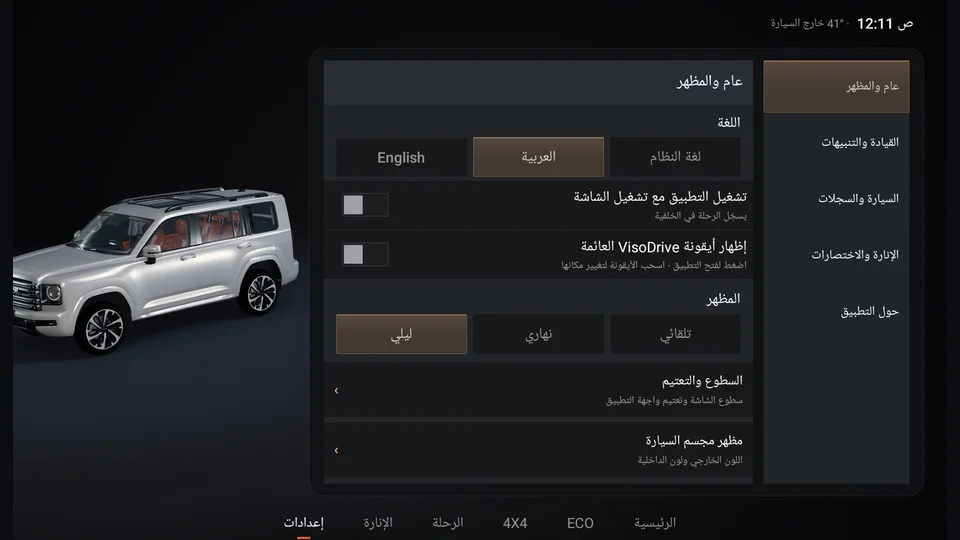
- Language: Arabic, English, or follow the screen's language.
- Appearance: automatic, day or night.
- Brightness & dimming: automatic screen brightness by darkness (with your permission, restoring the previous level when turned off), and dimming the app at night while alerts stay clear.
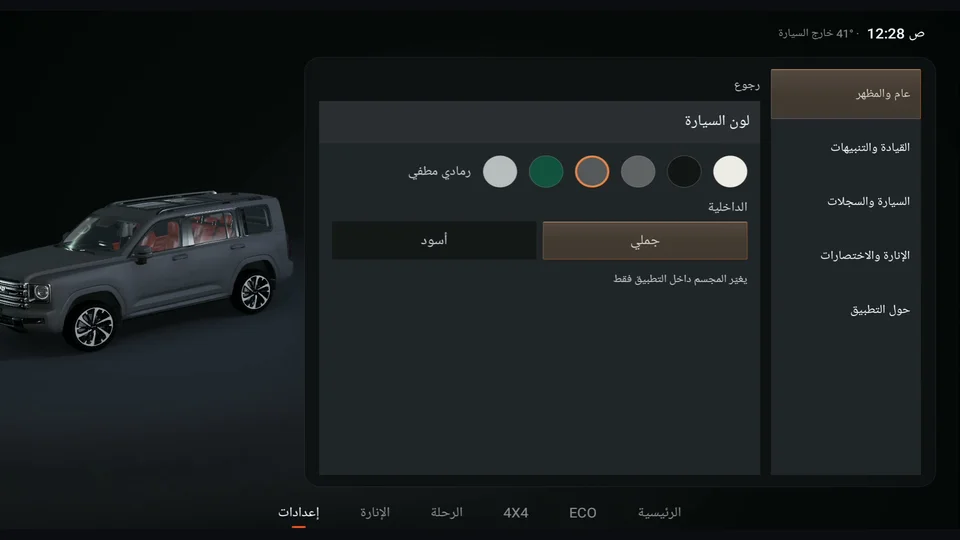
- Vehicle model appearance: six colours (white, black, grey, matte grey, green, silver), and a camel or black interior. Changes the model in the app only.
- Floating VisoDrive shortcut: a small shortcut over other screens that takes you back to the app. Drag it anywhere and it stays there.
- Start automatically with the vehicle.
Media coming soon
floating-icon.png02Driving & alerts
- Coach tips: which tips appear and how often.
- Reminders: a break after two hours of driving, 20 minutes before prayer, and heat guidance between 11 am and 6 pm.
- Sound for important alerts: an alert tone (the vehicle's screen has no Arabic voice).
03Vehicle & records
- Fuel: fuel grade and price per litre, and the refuel history (with deleting the last refuel).
- Tyres: front and rear reference road pressure, and tracking pressure loss.
- Maintenance: schedules, history and part replacement.
- Drivers & trips: choose who is driving, edit names, and export trips as a CSV file.
04Lighting & shortcuts
- Use lighting for alerts: fuel, temperature and tyres through the ambient light.
- Vehicle shortcuts: open the available original vehicle settings screens.
05About
Version number, updates, licences, and how to contact us.
06Updates
Updates reach you inside the app over the vehicle's internet, with no USB needed again:
- The app quietly checks for updates (you can turn off "Check automatically").
- When it finds a new version, downloading is your choice, and if it is interrupted it resumes where it stopped.
- It checks the file's integrity and signature before installing.
- It installs only while the vehicle is in P. The first time, Android asks you to allow VisoDrive to install: allow it, go back and tap install again.
- Confirm on the Android screen, and VisoDrive comes back by itself after the update.
Your settings and trip history stay as they are.
Media coming soon
update-screen.png