
Ambient lighting
If your vehicle has a Bluetooth ambient light, control it from the vehicle's screen instead of your phone, and let it react to your driving.
01Supported devices
| Type | Usual phone app |
|---|---|
| ATW · VOYEEGO | AmbientLight+ |
| ELK-BLEDOM · duoCo Strip | Lotus Lamp |
| Magic Home · LEDnetWF · Zengge | Magic Home / Zengge |
| Triones · QHM | Happy Lighting |
| LEDBLE · LEDCAR | LED LAMP |
| iLink | iLink |
| Govee (Bluetooth) | Govee Home |
| BJ_LED | Lotus Lantern |
| BanlanX SP110E · SP60xE | BanlanX |
| MELK · LEDDMX | Magic Lantern |
Options (effects, speed, music) vary by device. The app connects only to supported lighting devices and ignores every other Bluetooth device.
02Connect (once)
- Turn the light on, and make sure it is not connected to its phone app (close the app or turn off the phone's Bluetooth).
- In VisoDrive open Lighting, tap "Devices", then "Search".
- Choose your device from "Nearby lights". If it asks for the type, choose the one that matches your phone app.
- "Connected via Bluetooth" appears, and from then on it connects by itself every time you start the vehicle.
Media coming soon
light-devices.png03Controls
- On and off, brightness, and colour from the colour palette.
- Effects: fade, breathe, flash, motion, with effect speed.
- Music: the light reacts to sound from the light controller's microphone (on devices that support it).
- While driving only quick options show; the rest of the colours and effects are available when you stop.
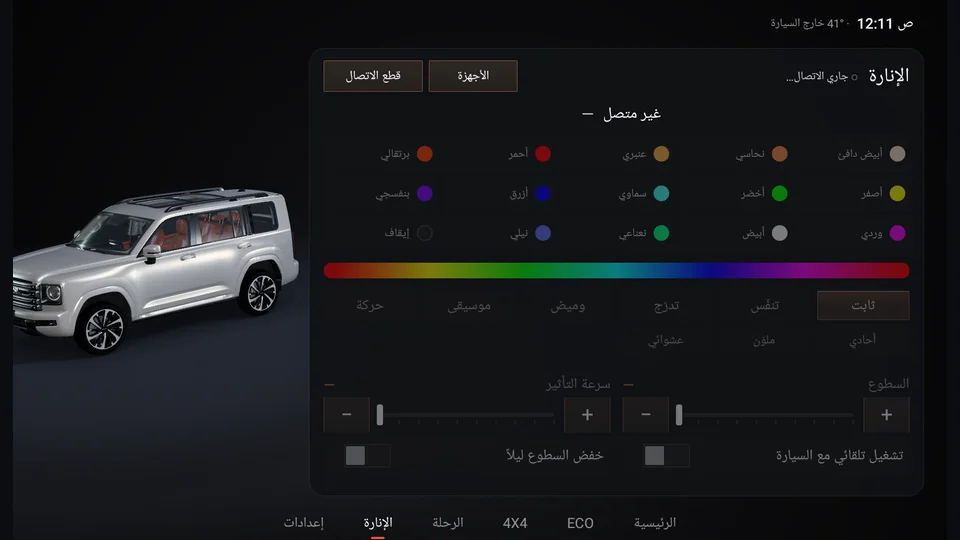
- 1Colours
- 2Brightness
- 3Devices
04Smart lighting
- Automatic with day and night.
- Colour by driving style: the light follows the ECO colours.
- Alerts through the light: fuel, temperature and tyres (turn on in Settings › Lighting & shortcuts).
- 4×4: a green flash with deflation OK and red with the stuck alert, then back to your colour. If it is off, it stays off.
Media coming soon
light-car.mp4