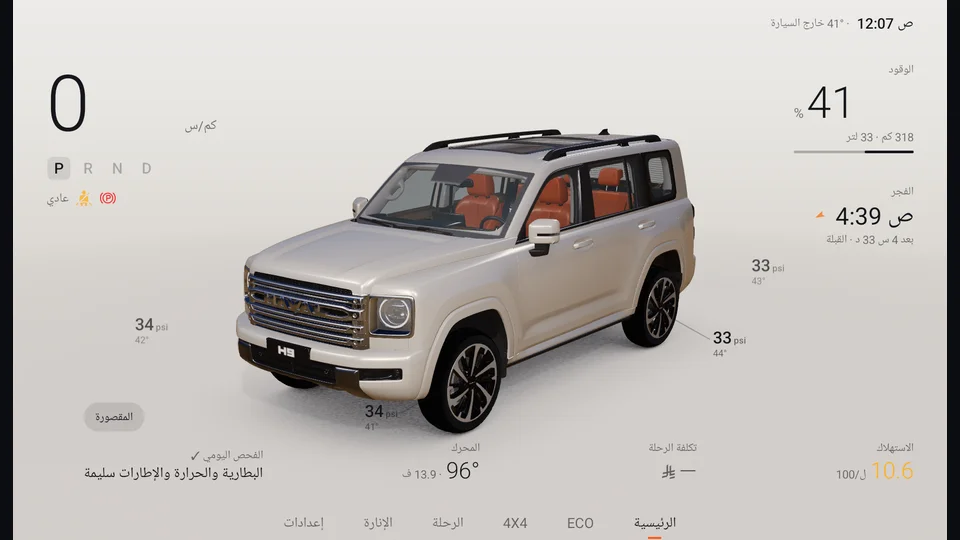
Home screen
Your vehicle in 3D, moving like the real one moment by moment, with only the most important information around it.
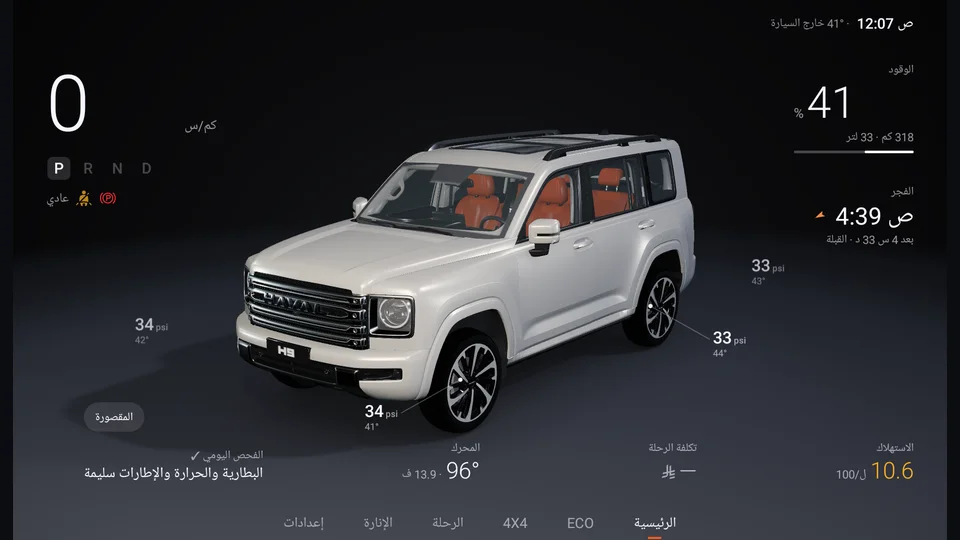
- 1Speed & gear
- 2Fuel & range
- 3Next prayer
- 4Tyre pressure & temp
- 5Cabin button
- 6Sections
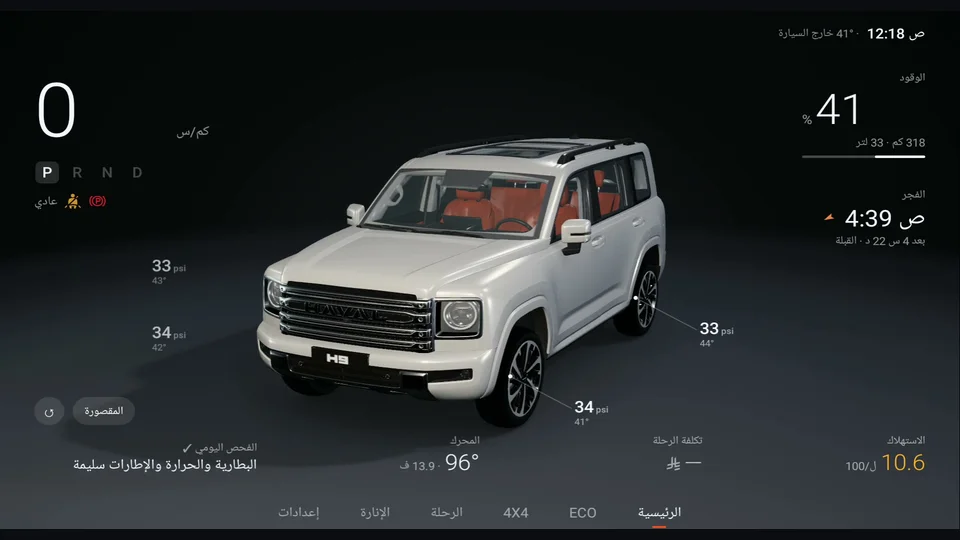
01What's on the screen?
| Where | What you see |
|---|---|
| Top | The time and outside temperature, and a centre alert when something matters |
| Left | Speed, gear (P R N D) with the gear number, drive mode, and the seat belt and parking brake symbols |
| Right | Fuel as a percentage with range and litres, and the next prayer with the time left |
| Around the vehicle | Pressure and temperature of each tyre, next to the tyre itself |
| Bottom | Consumption, trip cost, engine temperature and battery, and the daily check |
| Bottom bar | Sections: Home, ECO, 4×4, Trip, Lighting, Settings |
02Move the vehicle
Drag with one finger to turn it, and use two fingers to zoom in and out. The ↺ button puts it back. The camera never moves by itself, only when you tap something or change gear.
03Your vehicle, exactly
The model reads your vehicle and shows:
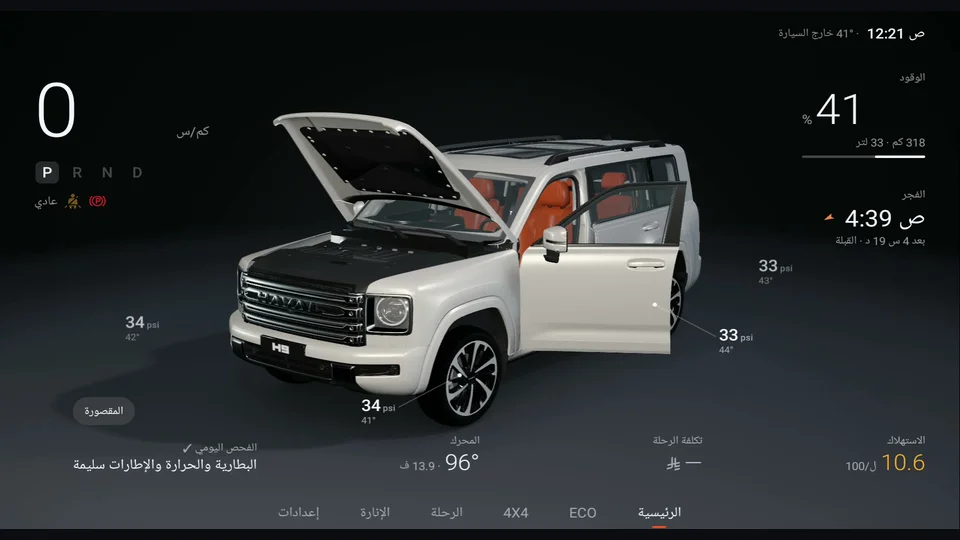
- Doors, hood and tailgate when they open.
- Windows fully or partly down, and the sunroof tilted or open.
- Mirrors folding, and the side steps sliding out when a door opens.
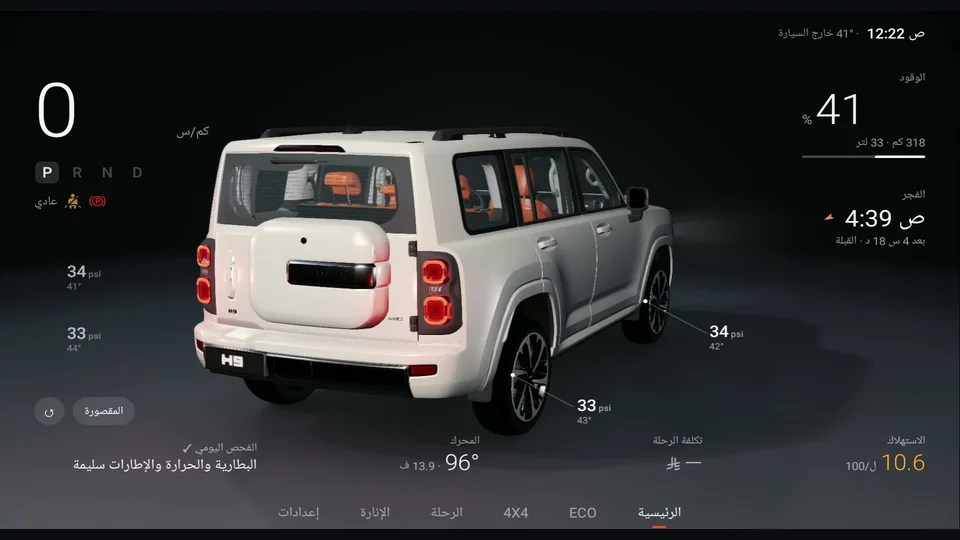
- Lights: daytime, headlights and tail lights, brakes, indicators, hazards, reverse and fog lights.
- Front wheels turning with the steering wheel, and all wheels rolling as you drive.
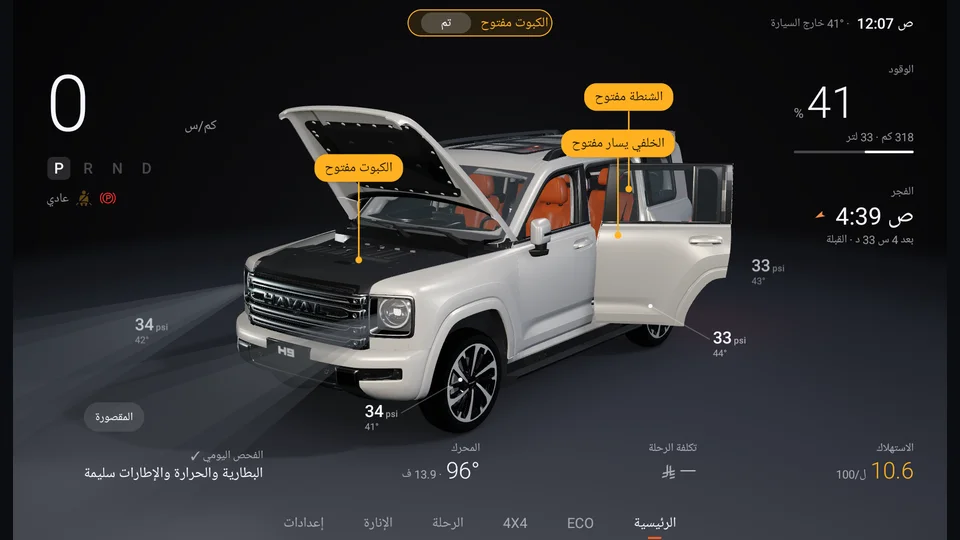
- 1Hood
- 2Door open
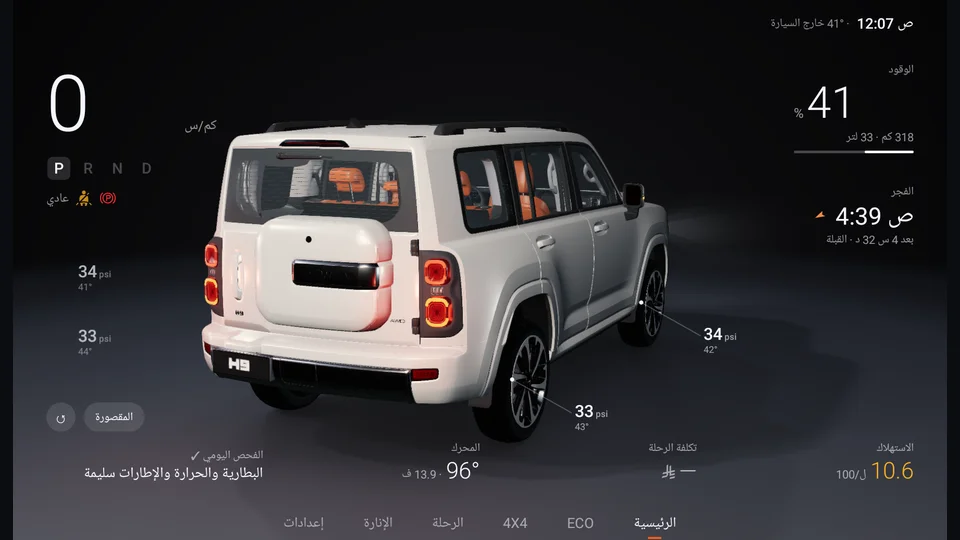
- 1Rear lights
04Tap to learn more
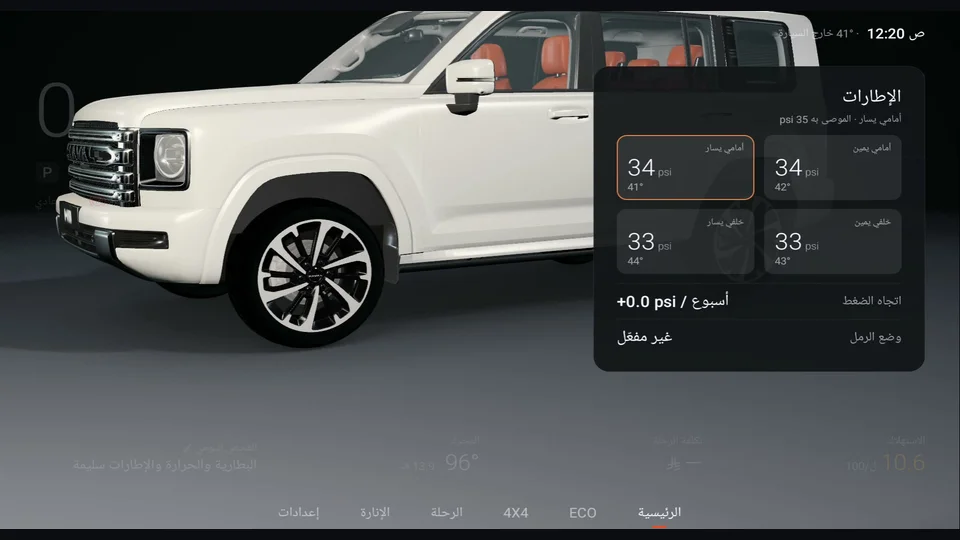
Any number on the screen opens a detail card, and the camera moves to that part:
| Tap | You see |
|---|---|
| Tyre | Pressure and temperature of all four tyres, the recommended pressure, and the weekly pressure trend (spots a slow leak) |
| Fuel | Range left, and "Will I make it?": enter the distance to your destination and it tells you if the fuel is enough |
| Engine | Vehicle health: temperature and battery (see Vehicle health) |
| Consumption | The ECO page |
| Trip cost | The Trip page |
| Prayer | Today's times and the Qibla direction |
| Speed | A driving summary, and from there the 4×4 screen |
| Daily check | A suggestion or alert based on your vehicle's condition |
Close the card by tapping outside it or with the back button, and the vehicle returns to where it was.
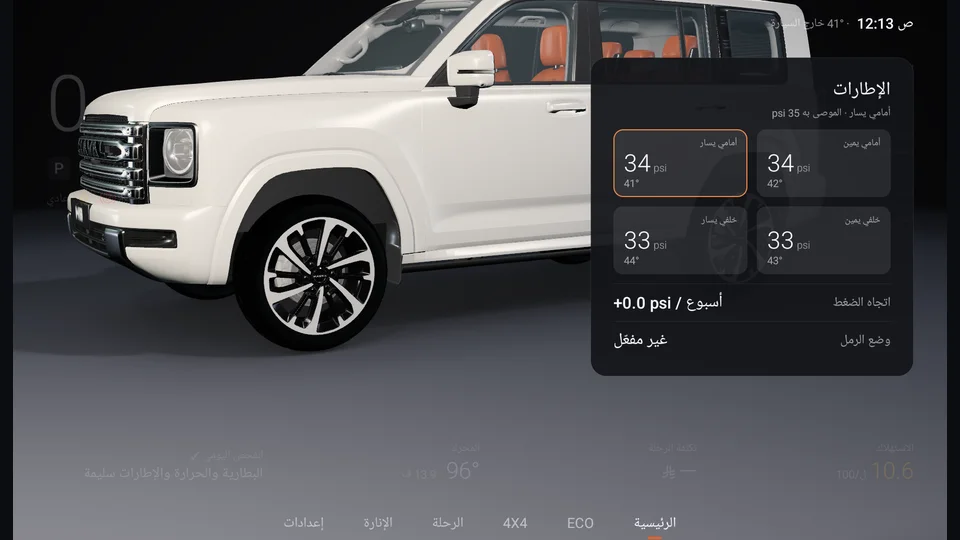
- 1All four tyres
- 2Weekly pressure trend
05Alerts that matter
- Seat belt: while parked the belt symbol pulses gently. Above 10 km/h a yellow bar appears with a chime, and from 40 km/h it turns red.
- Low fuel, engine oil pressure and tyre pressure warnings from the vehicle's sensors.
- Cabin air: if fine dust (PM2.5) is high, it suggests turning on recirculation.
- Parking brake: red symbol when applied, grey when released.
belt-alert.png06Drive mode
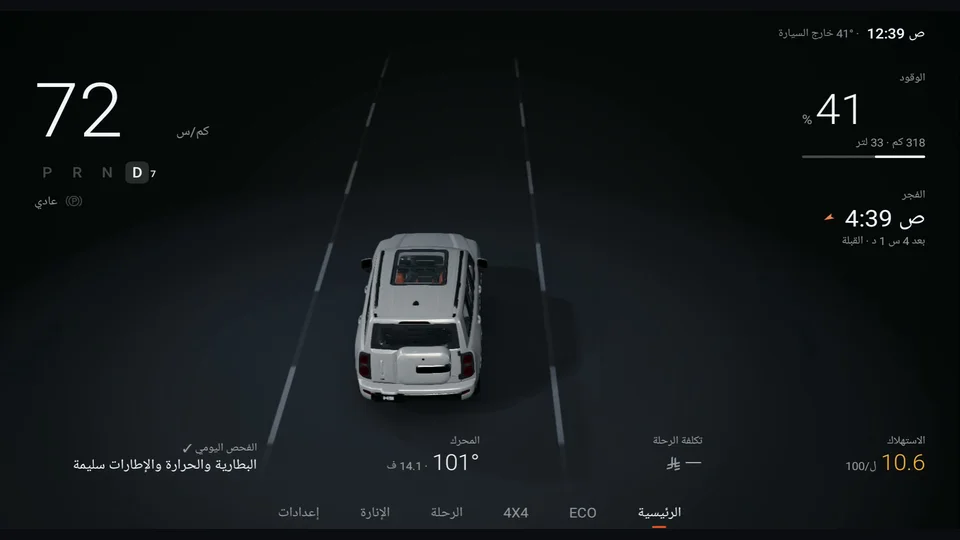
When you shift to D, the camera moves gently behind the vehicle, and the road lines move with your real speed. Speed, gear and gear number stay clear, and everything else steps back. When you return to P, the screen goes back to how it was.
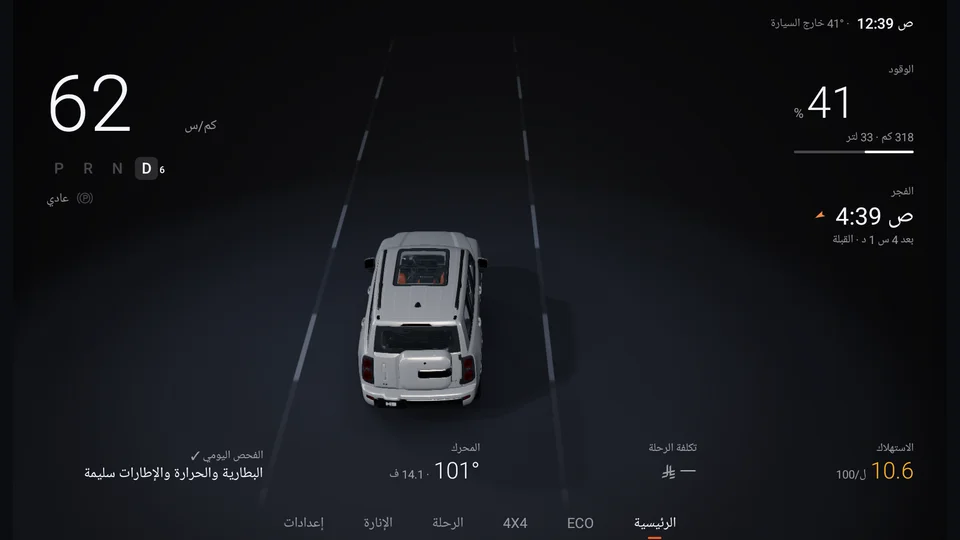
- 1Speed
- 2Gear & gear number
- 3Road moves with your speed
07Day and night
The screen follows your vehicle's lights automatically, and if that is not available it follows sunset at your location. You can fix it to day or night in Settings.